How to Use Mistral AI Like a Pro
Mistral AI provides a powerful platform designed to help developers, IT consultants, and AI enthusiasts build, deploy, and manage advanced AI solutions. Whether you're working on DevOps, Cloud Architecture, or AI deployment, Mistral AI offers the tools you need to streamline your workflow and enhance productivity. In this guide, we’ll walk you through the essential steps to set up and use Mistral AI like a pro, covering Mistral models, Mistral Vibe, knowledge bases, MCP servers, skills, and agents.
Mistral AI Models
Mistral AI proposes a variety of models tailored for different use cases. These models are optimized for tasks ranging from natural language processing to complex AI-driven automation. Here’s a quick overview of the key models available and their categories:
General Purpose Models
Mistral Large
Flagship general-purpose model with multimodal and multilingual capabilities and more than 41B parameters.
Mistral Medium
High-performance model balancing frontier-level capability with significantly lower operational cost.
Mistral Small
Lightweight and efficient model, ideal for high-volume tasks where speed matters.
Reasoning Models
Magistral (Medium & Small)
Reasoning models, built for complex multi-step problem solving with transparent chain-of-thought logic.
Code & Development Models
Codestral
Dedicated coding model supporting 80+ languages, optimized for code completion, bug fixing, and test writing.
Devstral
Agentic coding model that reasons across entire codebases to plan, edit, and ship code autonomously.
Specific Models
Pixtral
Vision model for image understanding, document analysis, and chart interpretation.
Voxtral
Audio model for transcription, translation, and speech understanding.
Edge & Local Models
Ministral (3B, 8B, 14B)
Ultra-lightweight models designed for on-device and edge deployments.
Each model meets specific needs, it is up to you to decide which one to use in order to achieve the best results.
Mistral Products
Alongside their models, Mistral AI offers a suite of products tailored for everyone, from casual users to enterprises and developers. Whether you’re chatting with Le Chat, prototyping in AI Studio, or coding with Mistral Vibe, Mistral's tools are here for you! Let's take a closer look at these three products before diving into how to customize them.
Le Chat
Available on web and mobile, Le Chat is Mistral's conversational AI assistant. It's likely their most well-known product, designed to help with everything from drafting emails and summarizing documents to brainstorming ideas and tackling complex questions.
Its interface is straightforward and approachable, letting you personalize your experience by creating Libraries, connecting MCP Servers, and setting up custom Agents.
AI Studio
AI Studio is Mistral's platform for developers and businesses looking to weave AI into their workflows and applications. It's built around making it easy to prototype, fine-tune, and deploy AI-powered features at scale.
Like Le Chat, AI Studio lets you create Agents and store documents to shape AI responses to your needs. It goes further by offering model fine-tuning and batch job capabilities, alongside a Playground where you can experiment with the full range of Mistral models.
Mistral Vibe
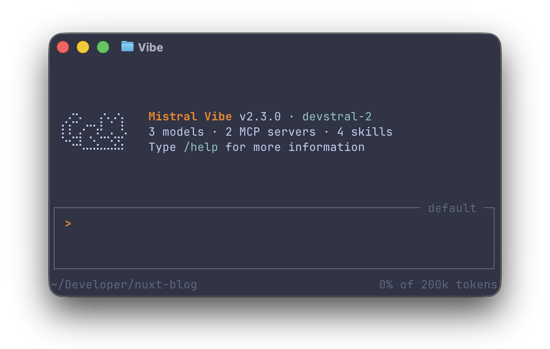
The latest product in Mistral AI family is Mistral Vibe, an open-source terminal-based AI coding assistant.
It's highly customizable, with native support for Agent, Skills and MCP servers. Configuration lives in ~/.vibe/config.toml, and in the section that follow, I'll walk you through how to tailor that file to fit your workflows.
Customization
In this section, I'll walk you through how each Mistral AI product can be tailored to your needs. Each part includes tabs to select the product you'd like to customize. Keep in mind that not every product supports the same features.
Libraries
The simplest way to personalize your AI experience is to add Libraries, which act as knowledge bases. By feeding your model curated documents, it can retrieve relevant information and deliver more accurate, grounded answers. This is particularly useful when you need the model to have deep, reliable knowledge on a specific topic.
For example, you could build a Library around a focused collection of documents: the rules for your favorite Warhammer army, all your notes from your first year at university, or the documentation for every Python dependency in your current project.
Libraries also become especially powerful when paired with Agents, giving them the context and information they need to perform effectively.
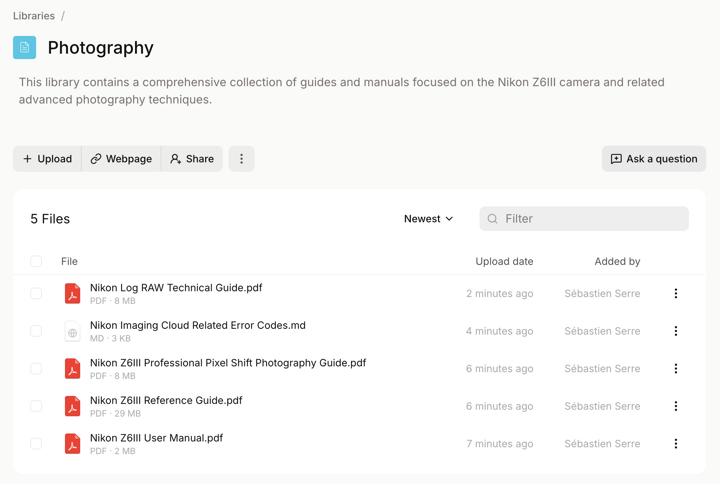
As an amateur photographer, let's say I want Le Chat to give me highly specific answers based on my own camera (a Nikon Z6III). I've downloaded all the relevant resources from Nikon's website (user manual, guides, and so on), and I'll now create a Library so that Le Chat can draw from those documents to give me the most accurate answers about my gear.
Open Libraries
From Le Chat dashboard, navigate to Librairies under Intelligence on the left sidebar.
Create your new Library
Click New Library and provide a name and description.
Upload your documents
Upload the documents containing the information you want Le Chat to draw from. Libraries support a range of formats, including PDFs, CSVs, and JSON files. You can also enter a website URL, which Le Chat will parse and save in Markdown format.
Start a conversation with Le Chat
With your Library populated, open a new conversation in Le Chat and toggle the Library you want the AI to have access to from the + button next to Mistral logo.
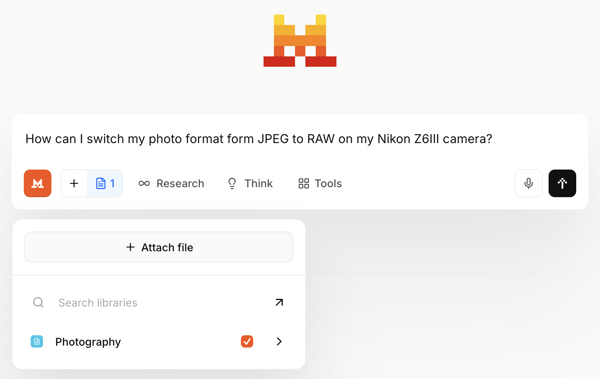
Le Chat will now use your Library to provide more accurate answers. You can also inspect the sources cited in its responses to verify where the information is coming from.
Connectors / MCP Servers
Connectors are a way to let Mistral AI models interact with tools and services such as your mailbox, your Trivago account or your Google Drive. A predifined list of pre-build connectors are directly available in Le Chat. Alongside Connectors, Le Chat also allows you to add a custom MCP server.
Model Control Protocol (MCP) servers are a defined standard protocol to let AI models using tools. A large variety of MCP servers exists already, you can find MCP servers here.
Open Connectors
From Le Chat dashboard, navigate to Connectors under Intelligence on the left sidebar.
Select your Connector or MCP Server
- Connector: Click Add Connector or select a featured Connector from the list.
- MCP Server: Click Add Connector, then select Custom MCP Connector from the top tabs.
Configure your Connector or MCP Server
- Connector: Follow the on-screen instructions to set up your Connector.
- MCP Server: Provide a Connector Name and the Server address.
Start a conversation with Le Chat
With your Connector or MCP server configured, open a new conversation in Le Chat and toggle the Connectors you want the AI to have access to via the Tools button.
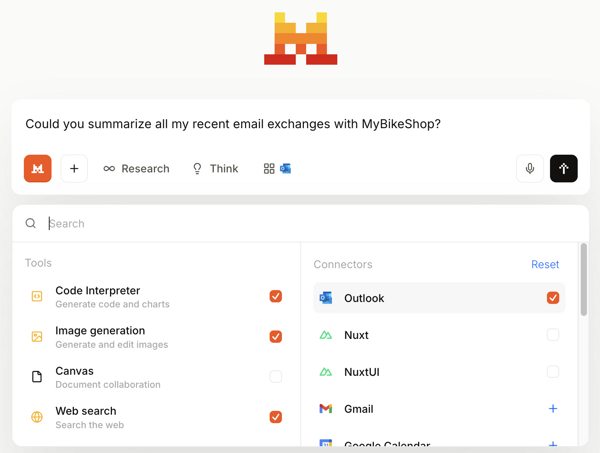
Le Chat will automatically use the relevant tools to carry out its actions.
To configure MCP servers in Mistral Vibe, open ~/.vibe/config.toml with your editor of choice and add your MCP servers within mcp_servers as follow:
mcp_servers = [
    { name = "nuxt", transport = "http", url = "https://nuxt.com/mcp" },
    { name = "nuxt_ui", transport = "http", url = "https://ui.nuxt.com/mcp" },
]
That's it! Launch Mistral Vibe and verify that your new MCP servers appear in the tool.
Skills
Skills are the new standard for extending AI's expertise on specific topics. A Skill is built around a collection of Markdown files, with SKILL.md as the entry point. To learn more about how Skills are structured, I recommend visiting agentskills.io.
You can create your own Skill from scratch or find existing ones online. Browse a large collection of community Skills in this GitHub repository.
While Le Chat doesn't natively support Skills, there is a simple workaround. Since Skills are essentially a collection of Markdown files, we can achieve the same result by creating a Library instead.
Create your Skill Library
From Le Chat dashboard, navigate to Librairies and create a new Library for your Skill.
Upload your Skill Markdown files
Upload all the Markdown files from the Skill you want to integrate. Since Libraries don't support directories, place all files at the root level as follows:
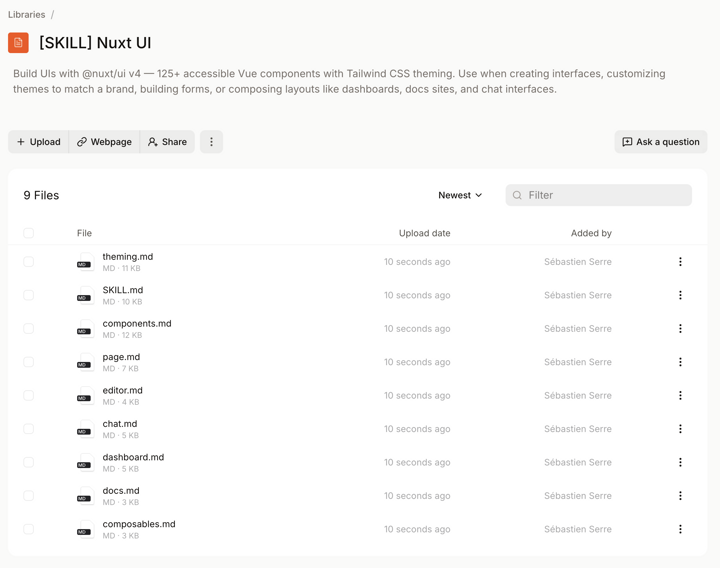
Start a conversation with Le Chat
Open a new conversation in Le Chat and make sure your new Library is toggled on.
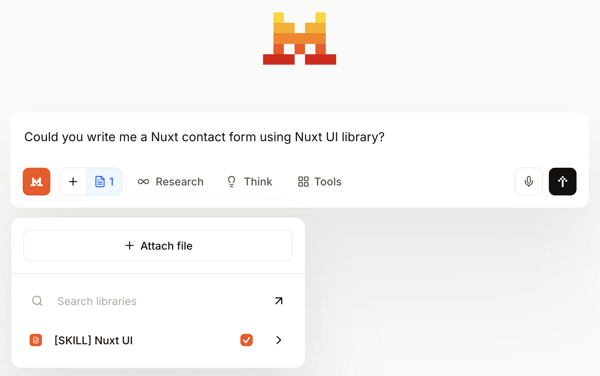
Le Chat will automatically draw from the Library to provide more accurate answers.
| Le Chat | Le Chat + Skill Library | Mistral Vibe + Skill |
|---|---|---|
| - Doesn't use all available Nuxt UI components - References Nuxt 3 instead of Nuxt 4 | - Uses all Nuxt UI components - Uses zod for form validation as mentioned in the Skill | - Very similar results to Le Chat + Skill Library |
For Mistral Vibe, Skills are defined as local directories on your machine. You can define Skills globally at the default path ~/.vibe/skills/<SKILL_DIRECTORY>/, specify a custom path, or scope Skills to a specific project by placing them under .vibe/skills/.
For the rest of this guide, I'll be setting up the official Nuxt UI Skill.
Create your Skill directory
Create a new nuxt-ui folder in one of the following locations:
- Global skills directory:
~/.vibe/skills/nuxt-ui - Local project skills:
.vibe/skills/nuxt-uiin your project - Custom paths:
custom/path/nuxt-ui
Copy the Skill files
From Nuxt UI repo, copy the SKILL.md file and the entire references folder into your new nuxt-ui directory. The resulting structure should look like this:
nuxt-ui/
├── SKILL.md          # Entry point (metadata + instructions)
└── references/       # Additional documentation
Enable your new Skill
Open ~/.vibe/config.toml and edit it as follows:
skill_paths = [
  "custom/path",      # Only needed if you used a custom path
]
enabled_skills = [
  "nuxt-ui",          # Must match the Skill folder name
]
Start Mistral Vibe
That's it! Your Nuxt UI Skill is now ready to use. Simply launch Vibe and start coding.
Agents
An Agent is an AI assistant configured to behave in a specific way and scoped to a particular purpose. At its core, an Agent is defined by the instructions you write, which set its role, tone, and boundaries. You also grant it access to Libraries for knowledge, Connectors and MCP Servers for external tools, and Skills for domain expertise.
Everything covered in the previous sections comes together in Agents, where all those building blocks add up into something truly tailored to your needs.
Create your Agent
From Le Chat dashboard, navigate to Agents on the left sidebar. Click Create an Agent and provide a name, a short description of the Agent's purpose and a personnalized icon.
Write your Agent Intructions
Instructions are the most important part of your Agent. This is where you define in detail how it should behave, what it knows, and what tools it has access to. Instructions support Markdown formatting.
For this example, I want to create a blog writing assistant capable of drafting posts and publishing them directly to my GitHub repository. Here are my instructions:
# Role
You are a specialized blog writing assistant with expertise in DevOps and AI topics. Your goal is to help draft, refine, and structure technical blog posts for a developer audience.

## Writing Style
- Write in a clear, direct, and conversational tone suited to a technical audience.
- Favor prose over lists and bullet points — structure ideas into well-formed paragraphs.
- Keep introductions concise and get to the point quickly.

## References
Use <MY_REFERENCE_LIBRARY> to maintain consistency with previously published articles and to cross-reference related content where relevant.

## Article Structure
Every article must follow this structure:
- **Title:** A concise, descriptive title that clearly reflects the article's topic.
- **Description:** A short one or two sentence summary suitable for use as a meta description or article preview.
- **Content:** The full article body, written in Markdown. Use headings to organize sections, and favor prose over lists wherever possible.

## Publishing
When asked to publish a post, use <GITHUB_CONNECTOR> to commit the final Markdown file to the appropriate repository and branch.
/ to reference Connectors, Tools or Libraries your Agent should use. In my example, <MY_REFERENCE_LIBRARY> and <GITHUB_CONNECTOR> are placeholders for my actual Library and Github Connector.Define Guardrails and Tone
Just below the Instructions, you'll find the Guardrails field. Guardrails are the rules your Agent will strictly follow. This is useful for enforcing style constraints, avoiding certain topics, or keeping responses focused. Here are mine:
- Do not use bullet points or numbered lists unless explicitly requested.
- Do not use special characters in titles or descriptions.
- Stay strictly within the scope of DevOps and AI topics. Politely decline requests outside this domain.
- Never fabricate information. If unsure, say so and suggest where to look instead.
Below Guardrails, you'll find the Tone selector. This is straightforward, pick the tone that best matches how you want your Agent to communicate. For this agent, I'll go with Objective and Pragmatic.
Grant Knowledge access
Last configuration option is Knowledge part. This will define the Tools, Connectors and Libraries that your Agent will have access to.
Depending on your Agent's scope, grant access to the necessary resources. Be careful not to grant access to resources that seem unnecessary to your Agent.
The final configuration step is the Knowledge section, where you define which Tools, Connectors, and Libraries your Agent can access. Grant access only to what's relevant to your Agent's scope! Avoid attaching unnecessary resources, as this can dilute the quality of its responses.
Test you Agent
That's it! Your first Agent is now ready to use from Le Chat. When starting a new conversation, click the orange Mistral button to select your Agent.