How to Use Mistral Codestral in Visual Studio Code
Mistral Codestral is a powerful code generation model designed by Mistral AI to assist developers in writing, debugging, and optimizing code. In this tutorial, you will learn two methods to integrate Mistral Codestral into Visual Studio Code: using the Mistral Studio API and running the model locally on your machine with LM Studio.
Which Method Should You Choose?
For a quick, cloud-based setup, use Codestral via Mistral AI Studio, ideal for hassle-free coding with minimal configuration. If you prefer full control, offline access, or customization, LM Studio is the way to go, offering flexibility and hardware optimization. Here’s a detailed comparison to help you decide:
| Mistral Studio API | LM Studio | |
|---|---|---|
| Internet required | Yes | No (offline) |
| Model version | Always latest | Manual updates |
| Hardware requirements | Cloud based | A powerfull machine to run Codestral |
| Privacy | Data sent to Mistral servers | Data stays on your machine |
| Use case | Always up-to-date, low-maintenance | Offline, full control over model |
Using Codestral via Mistral AI Studio
This first method will use Codestral from Mistral AI Studio to use on VS Code. The only requirement needed for this method is a valid Mistral AI account.
Retrieve your Codestral API key
Use your Mistral AI account to access AI Studio page. In the left panel, select Codestral under Code section.
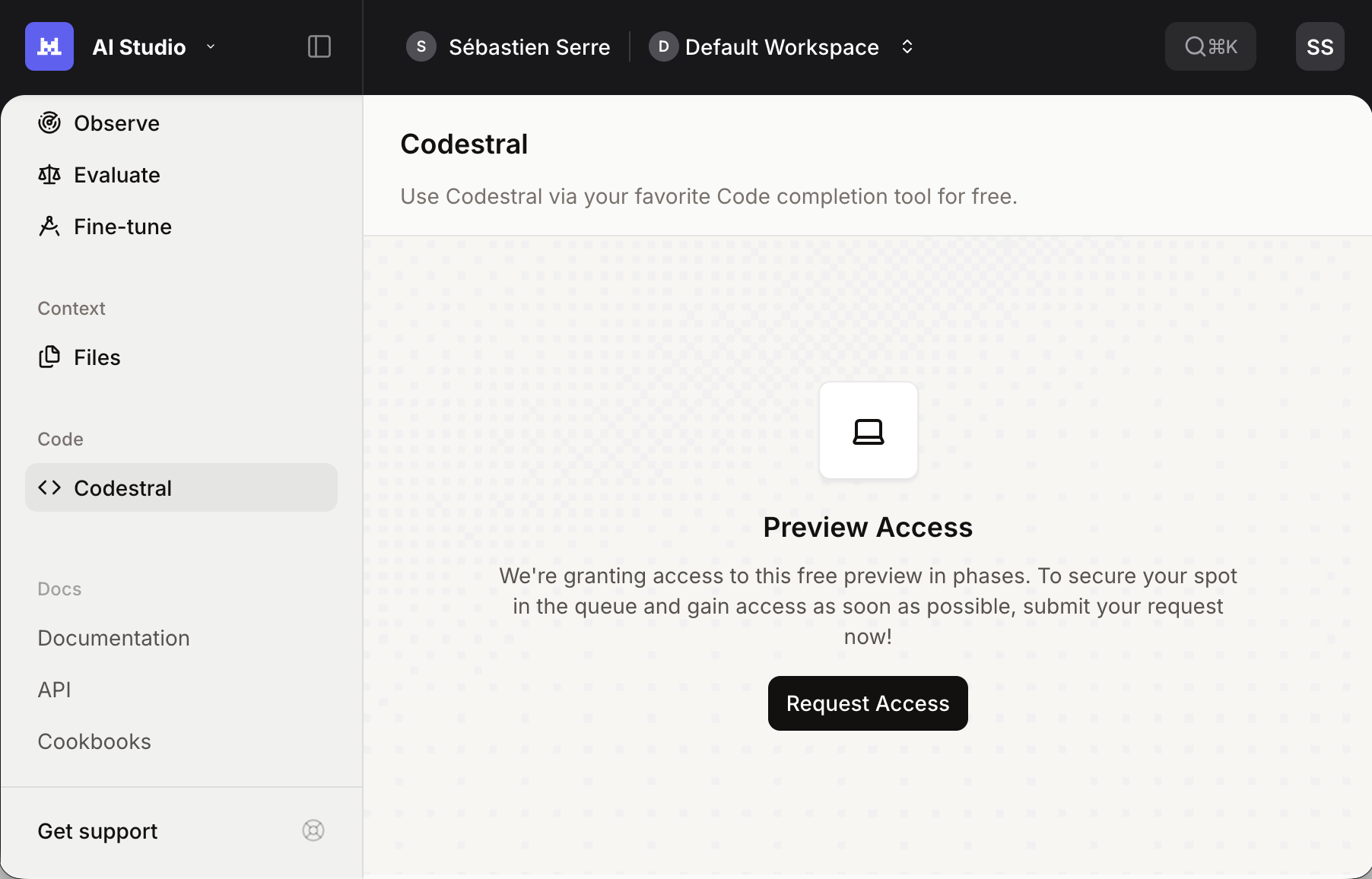
Click Request Access, accept the Terms of Service and copy your API key.
Install the Continue extension in VS Code
To use Codestral as a code assistant, install Continue extension from the VS Code marketplace. Let Auto Update enabled for seamless future updates.
Configure Continue for Codestral
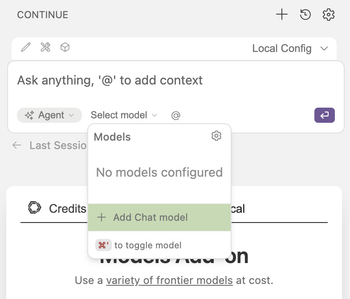
To set up Codestral on Continue, click on Continue icon on the left bar of your VS Code. On the new panel that opened, click the Select model then Add Chat model.
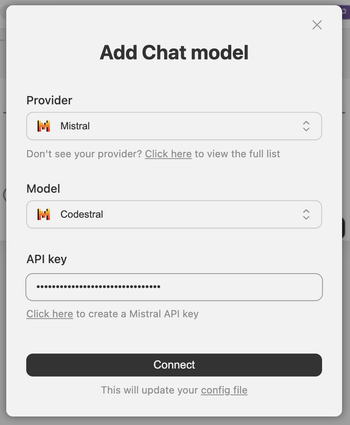
On the new page, select Mistral as the Provider and Codestral as the Model, then paste the API key you recover in the earlier step. You can finally click Connect and voilà!
If you prefer to setup Continue via the config file directly, you can use the following code:
name: Local Config
version: 1.0.0
schema: v1
models:
- name: Codestral
  provider: mistral
  model: codestral-latest
  apiKey: <CODESTRAL_API_KEY>
<CODESTRAL_API_KEY> with your API key retrieved in the previous step.Use Codestral in VS Code
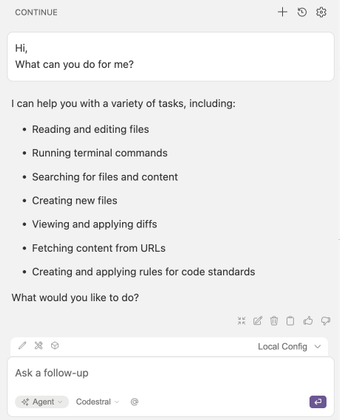
You’re ready! Chat directly with Codestral in VS Code for real-time coding assistance.
Running Codestral Locally with LM Studio
This second method walks you through hosting Codestral 22B locally using LM Studio and integrating it with VS Code.
Download the Codestral model
Open LM Studio and click on the search icon on the left side. In the search bar, type Mistral to filter Mistral’s models.
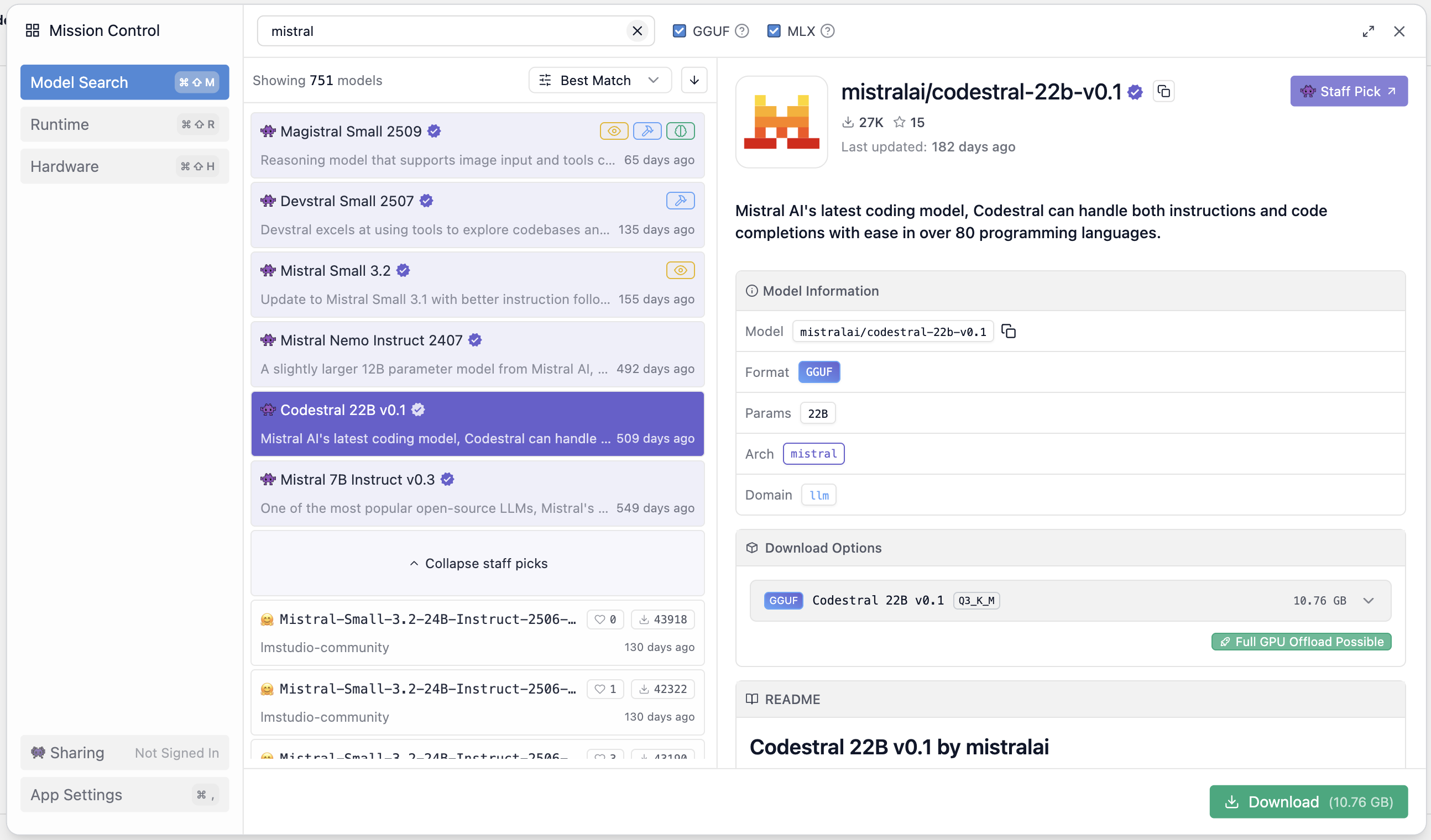
Select Codestral 22B v0.1 from the results. Click the small arrow in the Download Options panel to view available quantization options.
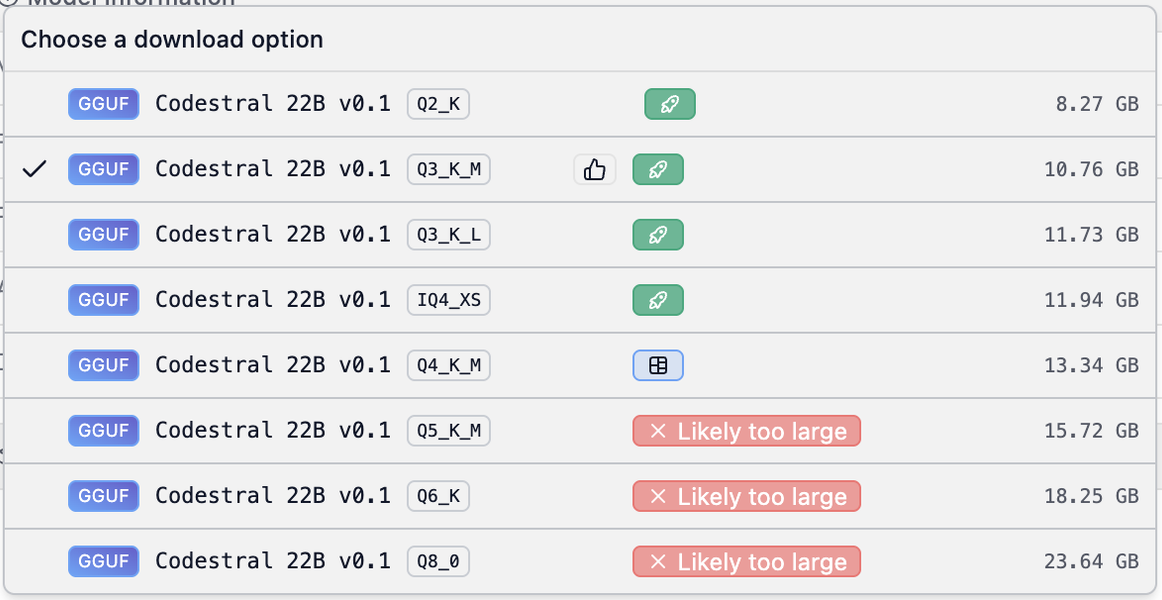
Quantization reduces the model’s precision to decrease its size and speed up inference. LM Studio labels these options with tags like
Q2_K, Q3_K_M, Q3_K_L, etc...LM Studio highlights the best option for your hardware with a thumbs-up icon.
Select the appropriate Codestral and click Download. Wait for the process to complete.
Load and Run Codestral in LM Studio
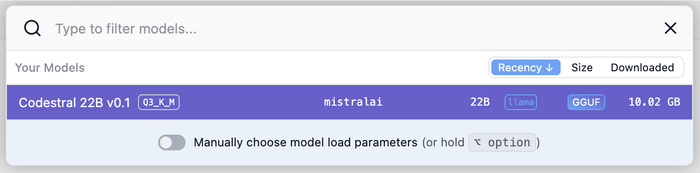
To start a model on LM Studio, click Select a model to load in the top bar. Select Codestral 22B v0.1 from your downloaded models. LM Studio will load it in order to run it.
Once the model is loaded you will need to start LM Studio server to expose it. To do it, click on the terminal icon on the left sidebar. On the new window, click on the toggle button.
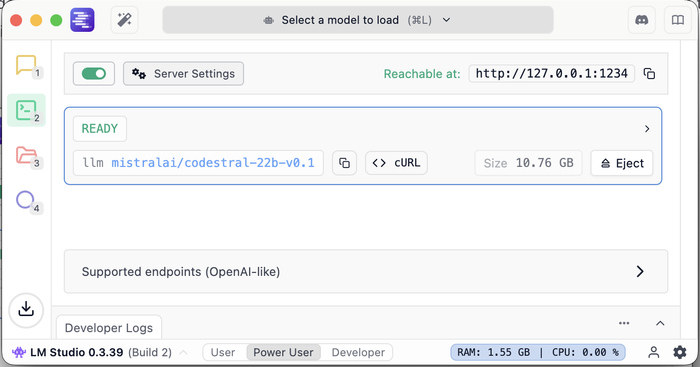
By default, LM Studio will expose your models on http://127.0.0.1:1234.
Install the Cline extension in VS Code
To use Codestral in VS Code, install Cline, a free extension that supports multiple LLM provider (LM Studio, Ollama, Amazon Bedrock, etc...).
To install it, search for Cline in the VS Code marketplace and click Install (I recommend you to keep enabled Auto Update).
Set Up LM Studio in VS Code
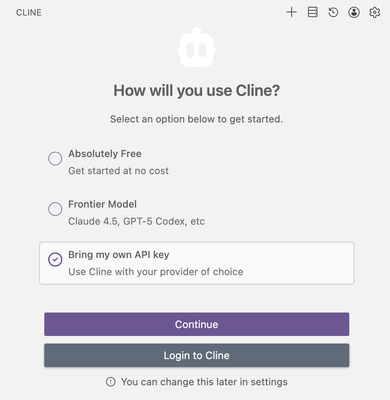
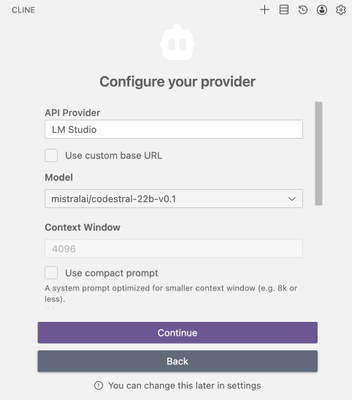
Once installed, open Cline from the left sidebar. On the new panel, select Bring my own API key and click Continue. On the next page, select LM Studio as API Provider and mistralai/codestral-22b-v0.1 as Model.
Use Codestral in VS Code
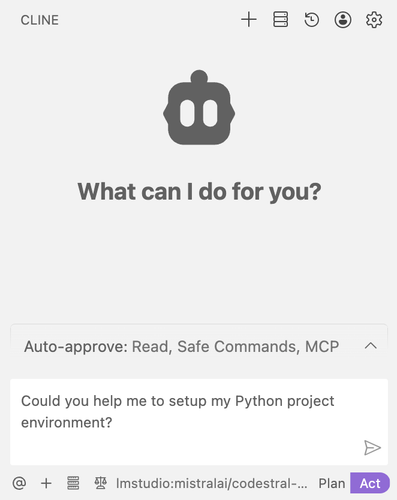
You’re all set! Start chatting with your locally hosted Codestral model directly in VS Code.